
Explore Module Overview
The Explore Module allows users to select and delve into specific GNGC sites for detailed exploration. To begin, simply click on any site icon to view a brief overview before exploring further.
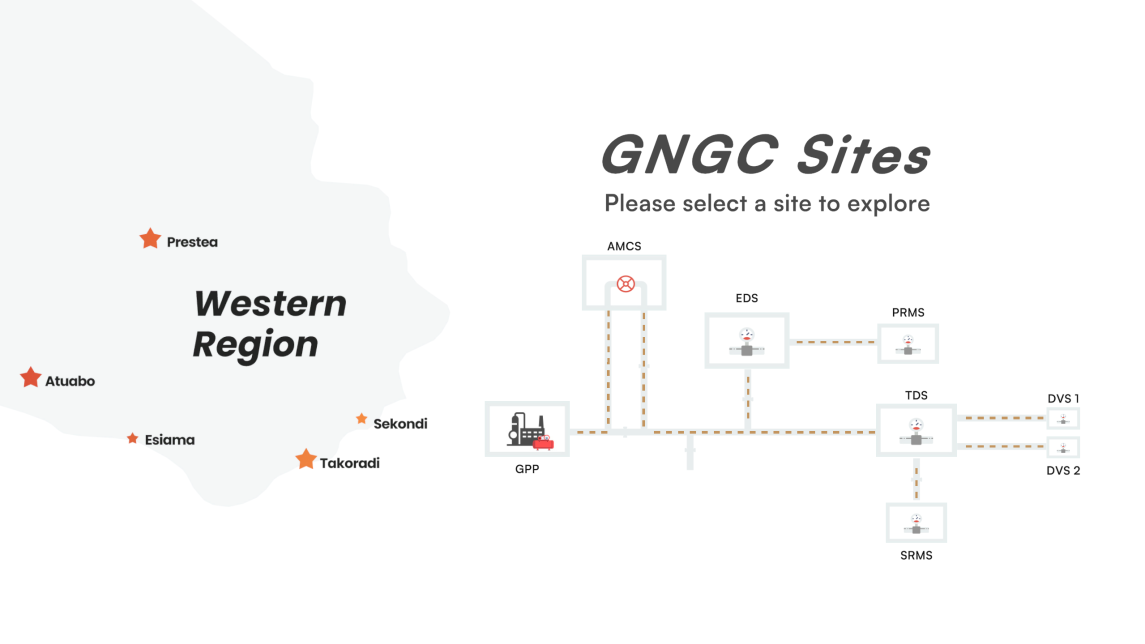
Site Navigation Interface
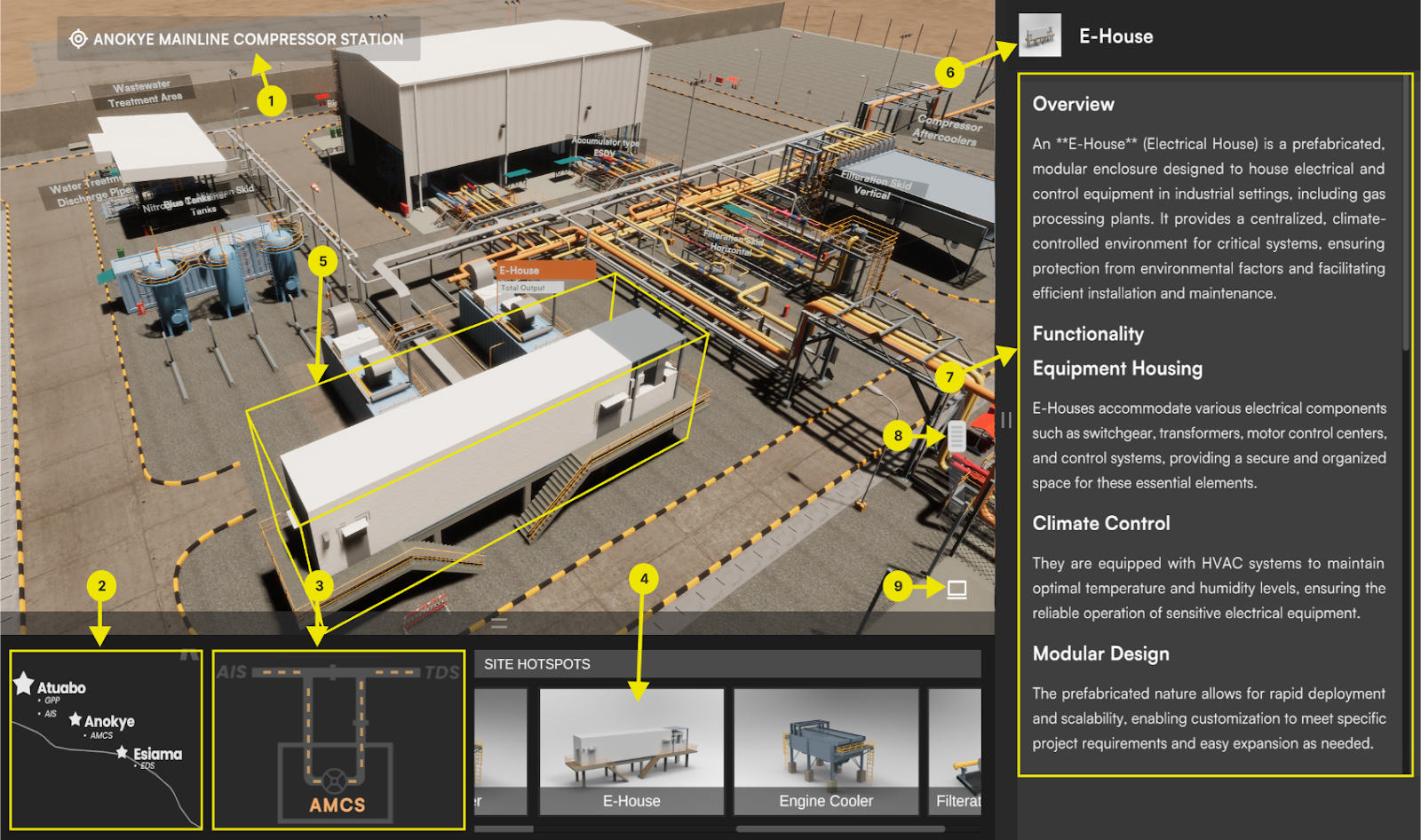
Key Interface Elements
1. Site Name Display: The name of the currently selected site is prominently displayed, allowing users to identify the active location at a glance.
2. Navigation Tool: Enables users to traverse the GNGC site map efficiently, providing an interactive overview of all connected sites within the system.
3. Site Terminals: Displays the process flow diagram of the site, highlighting key points such as the inlet and outlet terminals for better understanding of the site’s operations.
4. Site Hotspots Overview: Major equipment and critical components of the selected site are marked as hotspots. Clicking on any hotspot opens a detailed side panel with comprehensive information about the selected equipment.
5. Equipment Selection: When a piece of equipment is selected, it becomes the focal point of the camera. A yellow border highlights the selected equipment, and users can navigate around the scene by interacting with it.
6. Site Hotspot Thumbnail and Name: Displays the thumbnail image and name of the selected hotspot for quick reference.
7. Detailed Information Panel: Provides an in-depth description of the selected hotspot, including its primary role and major components, ensuring users have all the necessary information at their fingertips.
8. User Interface Slider: Allows users to zoom in and out of the site for enhanced navigation and a closer inspection of specific equipment or areas.
9. Full Screen and Presentation Mode: Offers the option to expand the interface to full-screen mode, enabling an immersive and distraction-free presentation of the site.